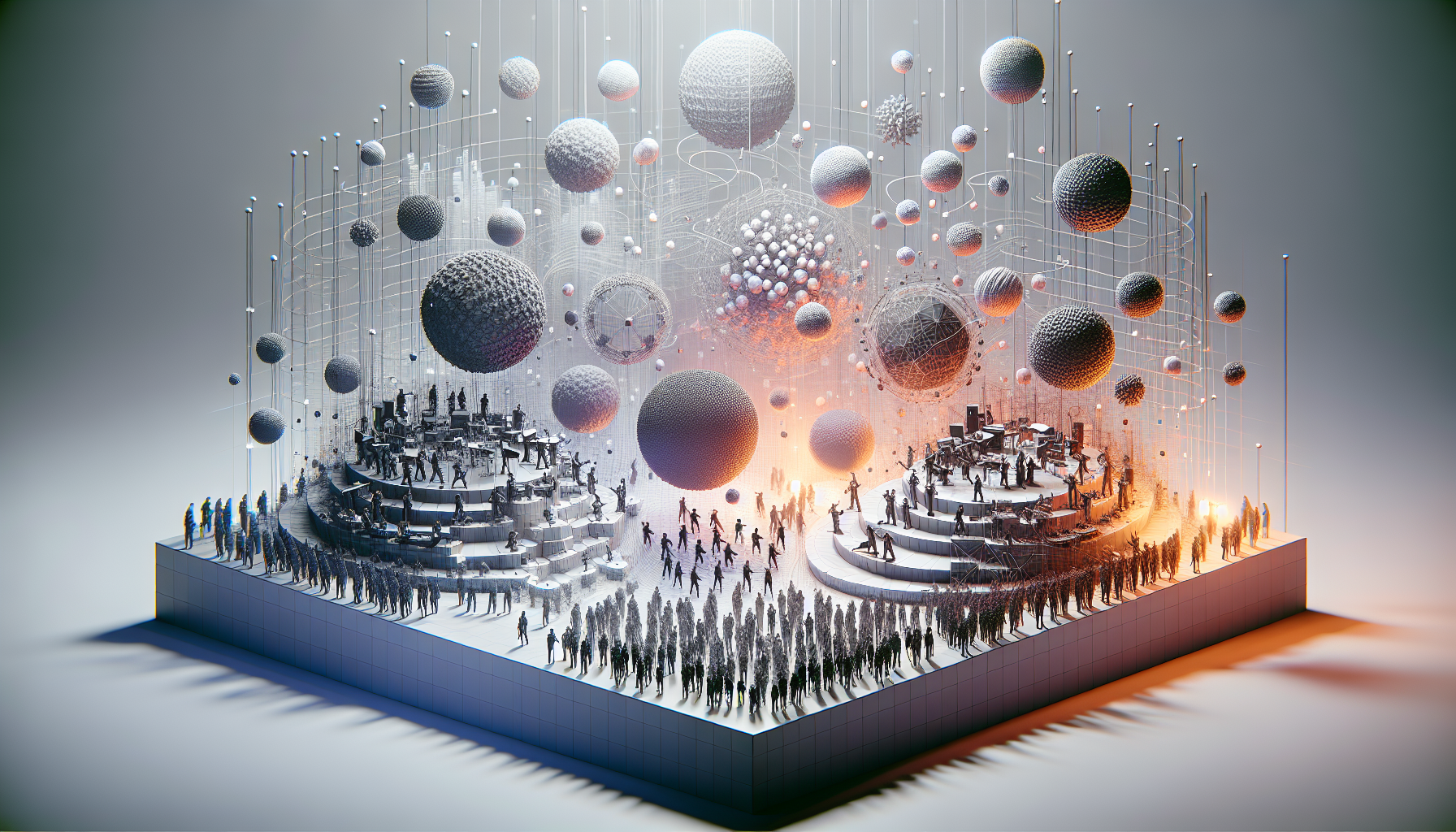
Ah, the digital world—where the clutter can rival that of a teenager’s bedroom. In this bustling universe of polygons and pixels, managing countless actors in your Unreal Engine project can sometimes feel like herding cats. But fear not, brave digital wrangler, for there is a magical tool designed to simplify your scene’s complexity and boost your framerate’s mood: Merging Actors.
Why Merge, You Ask?
Imagine you’re directing an epic blockbuster with a cast of thousands. Now, imagine you could combine all those extras into a few manageable groups without losing the essence of the crowd. That’s what merging actors in Unreal Engine is all about. It’s like turning a mob of screaming fans into a serene choir, all singing in harmony. By merging multiple mesh actors into a single one, you:
- Reduce Draw Calls: Each mesh in your game rings up the GPU like a call to customer service. Fewer meshes mean fewer calls, and thus, a happier GPU.
- Simplify Your Scene: Managing one actor is easier than managing twenty. It’s basic math, the kind even we can understand.
- Optimize Performance: Less overhead for rendering means smoother gameplay, and let’s be honest, we could all use a bit more smoothness in our lives.
How to Merge Actors Without Losing Your Mind
Merging actors isn’t just about throwing everything into a digital blender and hoping for the best. No, it’s a refined process that requires precision and a bit of know-how. Here’s how to do it without creating a Frankenstein’s monster:
- Select Your Victims: Open your scene and choose the actors you wish to merge. These could be anything from a group of rocks to a fleet of spacecraft. Just remember, once merged, they lose their individuality, like band members going solo.
- Open the Merge Tool: Navigate to the ‘Window’ menu, then select ‘Developer Tools’ followed by ‘Merge Actors’. This brings up a panel that, unlike your online dating profile, you will actually want to fill out.
- Configure Settings: Here’s where you can get fancy. Choose whether to merge materials (creating a single material from many), or to bake textures (handy if your actors are as texture-rich as a gourmet cake). You can also decide whether to create a new actor or replace the old ones, kind of like choosing between getting a new pet or just upgrading your current one.
- Merge and Marvel: Once you’ve set all your parameters, hit ‘Merge Actors’. Unreal Engine will do its magic, condensing your selected actors into a shiny new one. Take a moment to appreciate how much cleaner your project looks. It’s like spring cleaning, but for your game.
Things to Watch Out For
While merging actors can be as satisfying as popping bubble wrap, there are a few pitfalls to avoid:
- Loss of Flexibility: Merged actors can’t be edited individually. It’s a commitment, like a tattoo of your partner’s name.
- Complexity in Materials: If you merge actors with different materials, you might end up with a complex, multi-layered material that can be harder to manage than your email inbox.
- Collisions and Interactions: Be mindful of how these merged actors interact with the rest of your game. Sometimes, they play nice; other times, not so much.
Conclusion: A Tidier Digital World
Merging actors in Unreal Engine can transform a chaotic scene into a masterpiece of digital efficiency, like a conductor turning a cacophony into a symphony. It streamlines your workflow, boosts performance, and lets you focus on what truly matters: creating an unforgettable gaming experience.
So go ahead, merge with caution, and watch as your project transforms from a sprawling epic into a sleek, streamlined saga. Remember, in the digital world, sometimes less really is more.
