In the vast, bustling digital marketplace of Unreal Engine, where every texture fights for a pixel’s worth of your attention, there exists a hidden layer of sophistication that keeps things running as smoothly as a diplomat at a peace treaty signing. Enter mipmaps, the unsung heroes of texture management, ensuring that your virtual environments don’t just dazzle with detail but also perform with the precision of a Swiss watch. Let’s dive into the world of mipmaps, where less (resolution) can indeed be more.
What Exactly Are Mipmaps?
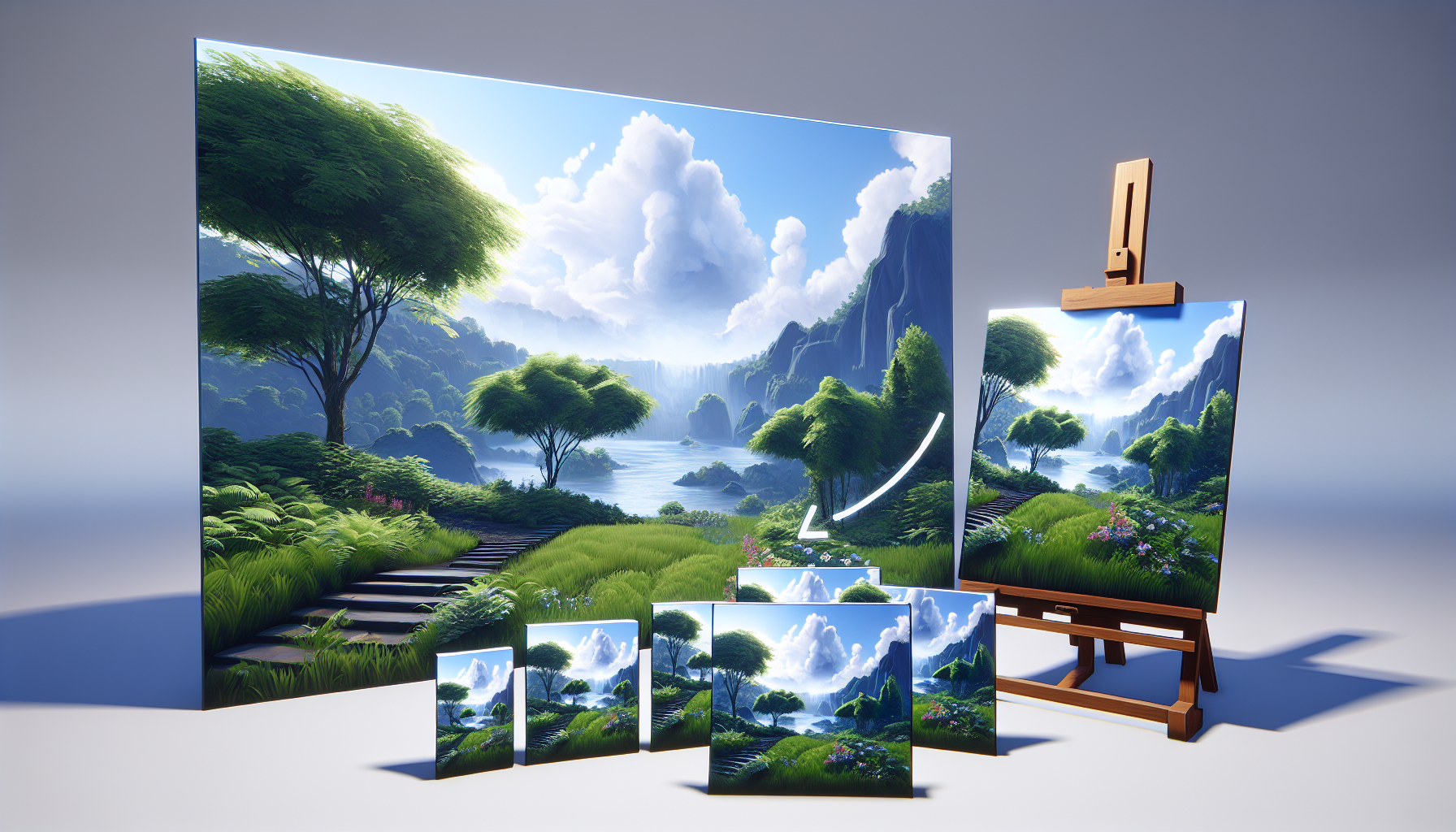
Imagine you’re an artist tasked with painting a landscape as seen from a mountaintop. Now, imagine painting it again on a smaller canvas, and then even smaller, and smaller. That’s essentially what mipmaps are—a series of progressively lower resolution versions of the same texture, stored alongside the original. In the digital realm, these mipmaps are used by game engines like Unreal Engine to increase rendering efficiency and improve visual quality.
The Magic Behind Mipmaps
The magic of mipmaps lies in their ability to adapt to distance. As objects move further away from the camera, their textures no longer need the same level of detail. Here’s where mipmaps step in, offering lower-resolution versions that maintain the visual fidelity without burdening the GPU with unnecessary data. The result? Crisper textures, fewer graphical artifacts like moiré patterns, and smoother performance.
The How and Why of Mipmap Generation
Automatic Mipmap Generation: In Unreal Engine, mipmaps are typically generated automatically when you import a texture. This automation is akin to hiring a team of skilled assistants who prepare everything you need before you even know you need it. The engine uses these mipmaps to dynamically switch between different resolutions based on the distance to the camera and the angle of view.
Custom Mipmap Control: For those who like to have their digital hands on the steering wheel, Unreal Engine allows you to customize mipmap settings:
- LOD Bias: Adjust this setting to force the engine to use higher or lower resolution mipmaps than it would normally choose. It’s like nudging your glasses up your nose to see better, or maybe not, depending on your artistic vision.
- Mipmap Filtering: Choose how the engine blends between mipmap levels. Trilinear and anisotropic filtering can help smooth out transitions and reduce texture aliasing, ensuring that your landscapes are as smooth as a jazz solo.
When and Why to Use Mipmaps
Performance Optimization: Mipmaps are crucial for running complex scenes smoothly. They reduce the memory bandwidth required for texture sampling, which can significantly boost performance, especially on lower-end hardware.
Avoiding Texture Aliasing: Without mipmaps, textures can exhibit aliasing artifacts when viewed at a distance or at oblique angles. Mipmaps provide the necessary variations in resolution to combat this, keeping your textures looking sharp and clean, no matter where they are in the scene.
Memory Considerations: While mipmaps improve performance, they also increase the memory footprint of your textures (typically adding about one-third to the original file size). It’s a trade-off, much like choosing between a sports car and a fuel-efficient sedan. Sometimes, the extra cost (in memory) is worth the performance.
Conclusion: The Layered Approach to Textures
Mipmaps might not get the limelight in the flashy world of game design, but their role behind the scenes is critical. By understanding and utilizing the power of mipmaps in Unreal Engine, you can ensure that your game not only looks impeccable but also runs with the efficiency of a well-oiled machine.
So the next time you’re zooming out on a digital landscape or sprinting past detailed textures, remember the mipmaps, quietly working in the background to make your visual experience as smooth as possible. After all, in the world of digital design, it’s often the smallest details that make the biggest impact.
