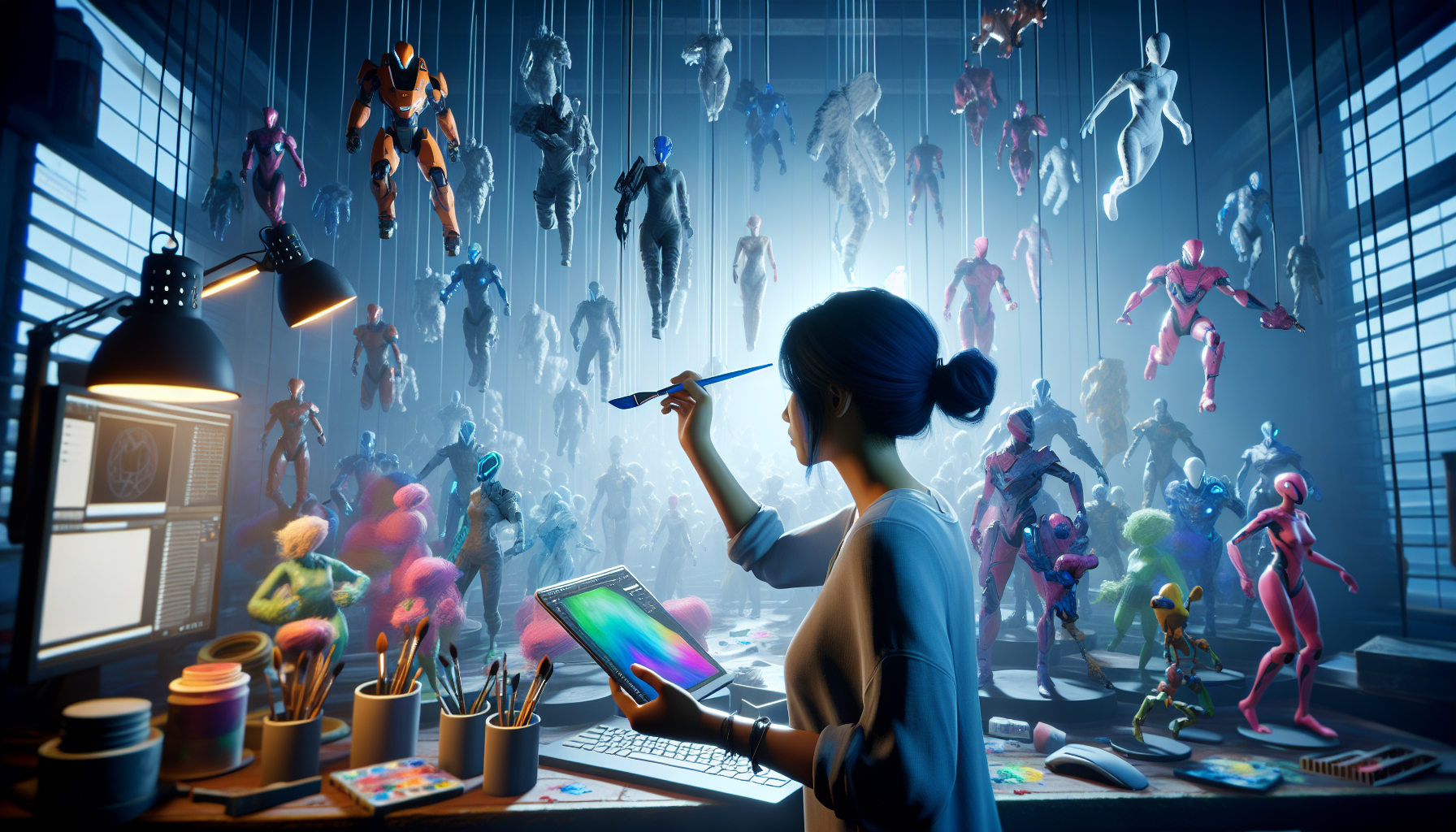
Welcome to the art studio of the digital age, where your canvas is a 3D model and your paintbrushes are powered by Unreal Engine’s Mesh Painting tool. Forget oil paints and watercolors—here, we splash pixels, tweak vertex colors, and spray textures with the finesse of a digital Michelangelo. Mesh Painting in Unreal Engine isn’t just a feature; it’s a gateway to adding depth, detail, and personal touches directly onto the surfaces of your 3D models.
What is Mesh Painting?
Mesh Painting is essentially the video game equivalent of airbrushing your favorite model car or painting miniatures. Only in this case, the model is part of a dynamic video game world. This tool allows developers and artists to paint color and textures directly onto the surfaces of 3D meshes within Unreal Engine. It’s a layer of interactivity that adds a unique flavor to game assets without the need for external texture programs.
Features That Make Mesh Painting a Game-Changer
- Direct Painting on Models: Imagine being able to draw, scribble, or detail directly on your game characters and objects. Mesh Painting lets you do just that, giving you the power to apply changes in real-time, right within the editor.
- Multi-Layered Texturing: With support for multiple texture channels, you can paint different material properties onto a single mesh. Want to add dirt, scratches, or wear and tear? Layer them on without affecting the underlying textures.
- Dynamic Interactions: Beyond aesthetics, mesh painting can influence gameplay. Paint areas on a mesh that react differently when interacted with, like weak spots on an enemy or hidden doors in walls.
- Vertex Color Painting: For those who dig deeper into the technical terrain, painting vertex colors offers a method to alter the very vertices of your mesh—perfect for creating intricate effects and detailed shading nuances.
Getting Started with Mesh Painting
Step 1: Prepare Your Mesh
- Ensure your mesh is ready and ripe for painting. It should have a proper UV map since Mesh Painting can utilize these coordinates to apply textures accurately.
Step 2: Open the Mesh Paint Tool
- Select your mesh in the scene, then open the Mesh Paint mode from the Modes panel. This switches your interface to painting mode, where the real fun begins.
Step 3: Configure Your Brushes
- Like any good artist, you need to set up your tools. Adjust brush size, flow, and color. Choose whether to paint colors, textures, or both. Each brush stroke can be a simple splash of color or a complex application of material properties.
Step 4: Start Painting
- With your mesh and brushes set, start painting directly on your 3D model. Experiment with layers and effects to achieve the look you desire. The changes are visible in real-time, allowing for immediate feedback and adjustment.
Step 5: Fine-Tuning
- Use the erase and blend functions to correct or blend your painting strokes. This can be particularly useful for smoothing out transitions or correcting mistakes without starting over.
Why Embrace Mesh Painting?
Mesh Painting in Unreal Engine unlocks a realm of creativity and customization for your projects. It allows artists and developers to:
- Quickly prototype ideas: Test colors and textures directly on your models without multiple rounds of external texturing.
- Enhance visual storytelling: Add unique scars, signs, or markings that tell a story or give depth to your characters.
- Increase efficiency: Streamline the texturing process by reducing dependencies on external software for minor adjustments.
Brush in Hand, World at Your Fingertips
In the grand tapestry of game development, Mesh Painting is like having a magic brush that dances across 3D models, leaving a trail of colors, textures, and possibilities. It’s an essential skill for those looking to add that extra layer of polish and personalization to their creations. So grab your digital brush and let the canvas of Unreal Engine inspire you to new heights of artistic achievement.
Whether you’re detailing a sprawling landscape or customizing a hero’s armor, Mesh Painting gives you the control to make every pixel count!
