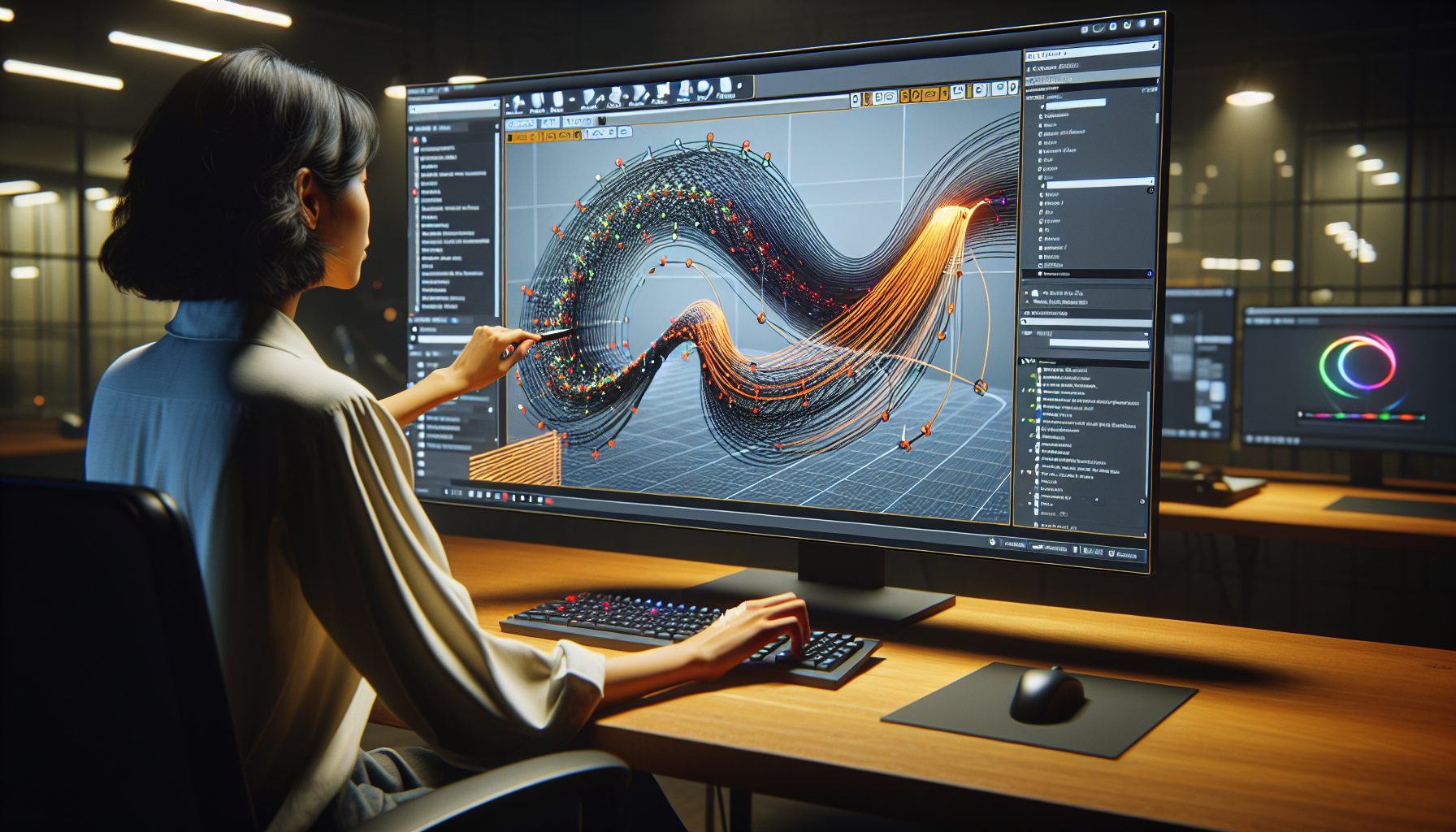
Navigating the Spline Editor in Unreal Engine is a bit like learning to drive a manual transmission: daunting at first, but immensely rewarding once you get the hang of it. This powerful tool lets you create and manipulate curves and paths that can dictate everything from road systems in a cityscape to the graceful arcs of a roller coaster. Today, we’re taking a closer look at the Spline Editor, offering tips and tricks to help you harness its potential and steer your projects to new heights of precision and creativity.
What is the Spline Editor?
In the simplest terms, the Spline Editor in Unreal Engine allows you to create complex, customizable curves by placing and adjusting a series of points or “nodes.” These splines can be used for a variety of purposes within your game or simulation, such as guiding movement, shaping terrain, or even animating objects. Think of it as drawing with a string that has a mind of its own, but you’re holding the pens at either end.
Getting Started with Splines
Before you can master the Spline Editor, you need to get to grips with its basic functionality. Here’s how to get started:
- Create a Spline Actor: In your Unreal Engine project, go to the Modes panel, select ‘Blueprint Class’, and choose ‘Actor’. Name your Blueprint, open it, and add a ‘Spline’ component. This acts as your canvas for spline creation.
- Add Spline Points: Click on your spline component in the viewport or details panel and start adding points by right-clicking on the spline and selecting ‘Add Spline Point Here’. You can continue to add as many points as needed to shape your path.
- Manipulate Points: Select individual points and move them around to shape the curve. Adjust the tangents (handles) to smooth or sharpen the turns. Each adjustment refines the path and behavior of your spline.
Tips and Tricks for Spline Mastery
Now that you have the basics down, let’s dive into some tips and tricks that can help you make the most of the Spline Editor:
- Snap to Grid: To make your spline creation more precise, enable ‘Snap to Grid’ in the viewport settings. This ensures your spline points align with the environment, making it easier to create accurate paths.
- Duplicate Points: Need a complex but symmetrical spline? Use the duplicate function to copy selected spline points. This is great for creating loops or mirrored shapes without manually placing every point.
- Use Spline Meshes: To visualize your spline, apply a mesh along its length. Add a ‘Spline Mesh Component’ in your actor and set a static mesh to it. Adjust the start and end tangents to align the mesh with the spline curves seamlessly.
- Dynamic Updates: Make your spline react to game events by updating points dynamically during gameplay. This can be done via Blueprints, allowing for interactive environments or objects that adjust based on player actions.
- Optimize Performance: While splines are incredibly useful, they can become resource-intensive if overused. Optimize by reducing the number of spline points and ensuring meshes are not overly complex. Use instancing if multiple similar splines are needed.
Advanced Applications
Once you’re comfortable with the basics of the Spline Editor, consider its potential for more advanced applications:
- Pathfinding: Use splines to guide AI movement. This can help in creating predictable yet complex movement patterns for NPCs.
- Cinematic Paths: Create dramatic camera sweeps by attaching a camera to a spline path, perfect for cutscenes or dynamic action sequences.
- Environmental Animation: Animate elements like rivers, roads, or even moving platforms along a spline to add life and movement to your scenes.
Conclusion: Drawing the Line
The Spline Editor is more than just a tool for drawing curves; it’s a bridge between your creative vision and the dynamic, interactive worlds you can build in Unreal Engine. By understanding and utilizing the Spline Editor, you open up a new dimension of design possibilities, from the practical to the spectacular.
So buckle up, grab the wheel, and enjoy the curves ahead—your project’s landscape is about to get a whole lot more interesting.
